How TestInspector Tests Tab Navigation and Keyboard Shortcut Flows: Keyboard Event Assertions, Focus State Validation, and Accessibility Verification Without Code
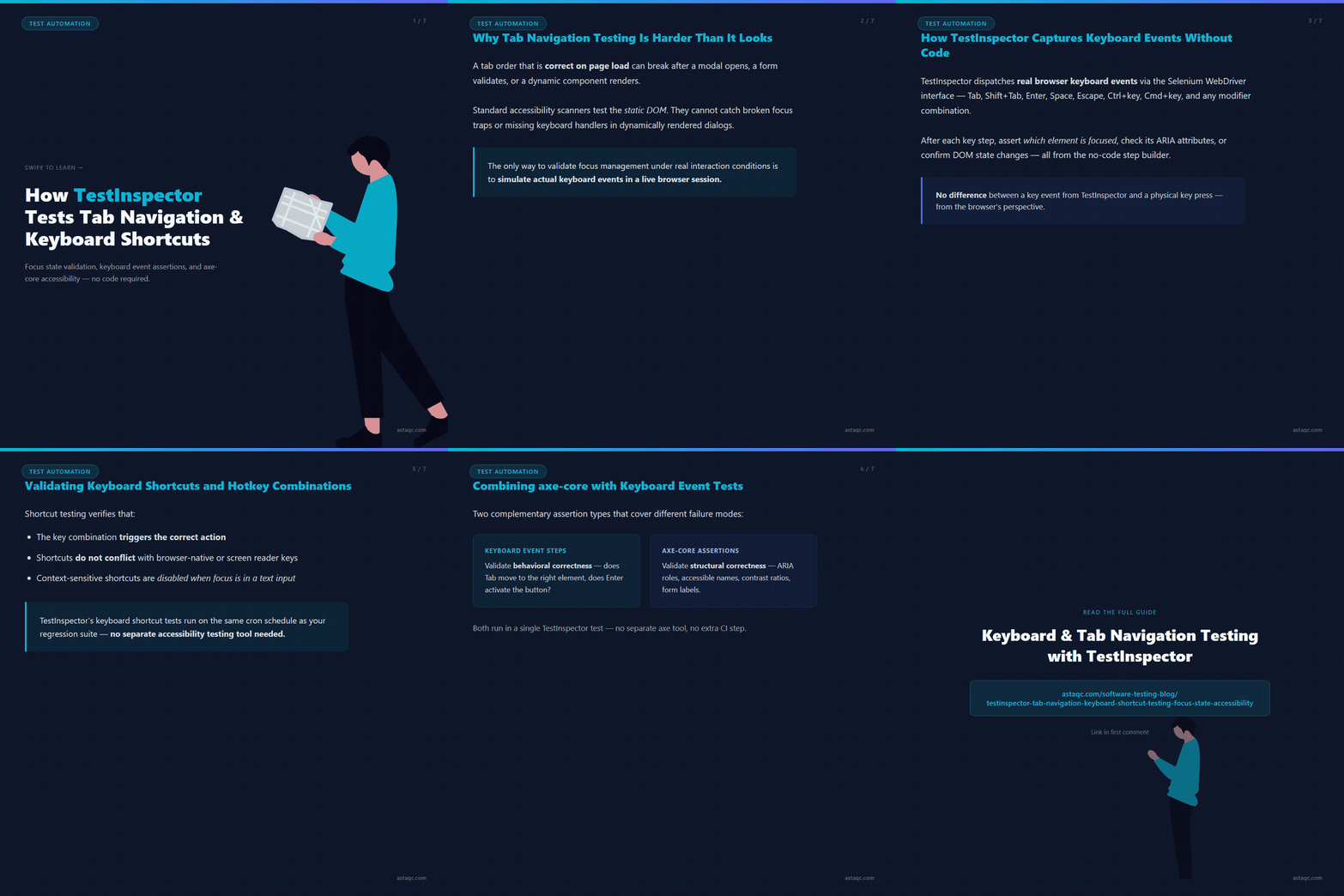
Tab navigation and keyboard shortcut testing validates that every interactive element in a web application is reachable, operable, and correctly ordered without a mouse. TestInspector supports keyboard event steps that simulate Tab, Shift+Tab, Enter, Space, Escape, and arbitrary key combinations directly in its no-code test builder, allowing QA teams to assert focus state, check ARIA attributes on focused elements, and validate that keyboard shortcuts trigger the correct application behavior without writing a single line of automation code. For teams managing accessibility compliance requirements, this coverage is a prerequisite: WCAG 2.1 success criteria 2.1.1 and 2.4.3 require that all functionality is keyboard accessible and that focus order matches the logical reading and operating sequence.
This guide covers how TestInspector handles keyboard event testing, the specific failure modes that tab order and shortcut validation catches, and how teams combine keyboard navigation coverage with axe-core accessibility assertions in a single no-code test workflow. The approaches covered here apply to any web application, from single-page apps with complex focus management to multi-step forms with dynamic focus trapping.
Why Tab Navigation and Keyboard Shortcut Testing Is Harder Than It Looks
Keyboard navigation testing is deceptively difficult because the browser's focus model is not static. Focus state depends on the DOM order, tabIndex attribute values, the current focused element's event handlers, and the application's JavaScript focus management logic, all of which can change dynamically as the user interacts with the application. A tab order that is correct on initial page load may become incorrect after a modal opens, a form validates, or a dynamic component renders. Testing static tab order at page load catches only a fraction of the real keyboard navigation surface.
The most common keyboard navigation defects fall into four categories. First, focus traps: a modal dialog that does not trap focus correctly allows keyboard users to Tab past the dialog into background content, where operations may execute without the user's awareness. Second, focus loss: a button click or form submission that removes the triggering element from the DOM without returning focus to a logical next element leaves keyboard users on an undefined focus position. Third, incorrect tab order: a visually ordered interface where the DOM order does not match the visual order creates a tab sequence that jumps unpredictably between sections. Fourth, missing keyboard equivalents: interactive actions that are only triggerable by mouse events, with no keyboard shortcut or Enter/Space equivalent, block keyboard-only users entirely.
Standard accessibility scanners catch some of these issues post-hoc, but they do not test dynamic keyboard behavior because they test the static DOM state. The only way to validate focus management under real interaction conditions is to simulate the actual keyboard events in a running browser session and assert on the focus state after each event. This is precisely what TestInspector's keyboard event steps enable, without requiring the QA engineer to write Selenium or Playwright code that simulates key presses programmatically.
For teams running test automation services that include accessibility compliance testing, keyboard navigation is typically tested in two passes: a static axe-core scan for structural issues and a dynamic keyboard event test for behavioral issues. TestInspector supports both in the same test suite. See also the complete software testing guide for how accessibility testing fits into the broader quality strategy.
How TestInspector Captures Keyboard Events and Key Sequences Without Code
TestInspector's keyboard event steps work by dispatching real browser keyboard events through the Selenium WebDriver interface that TestInspector manages. Because these events are dispatched through the browser's standard event system, they trigger the same JavaScript event handlers, focus management logic, and browser-native behavior as physical key presses. There is no difference between a keyboard event simulated by TestInspector and one generated by an actual keyboard from the browser's perspective.
In the TestInspector no-code interface, keyboard steps are created by selecting the target element and choosing the key action type. Available key actions include single character keys (letter, number, punctuation), special keys (Tab, Shift+Tab, Enter, Space, Escape, Arrow keys, Home, End, Page Up, Page Down), and modifier combinations (Ctrl+key, Alt+key, Cmd+key on macOS, Shift+key). For shortcuts that require multiple modifiers, TestInspector supports key chord syntax that holds modifier keys while pressing the primary key, then releases all keys in the correct order.
After a keyboard step executes, TestInspector supports three types of assertions on the resulting state. First, focus assertions: the step can assert that a specific element is focused after the key event, identified by selector, role, or text. Second, attribute assertions: the step can assert that the focused element has the correct ARIA attributes (aria-expanded, aria-selected, aria-checked, aria-current) that reflect the state change triggered by the key event. Third, content assertions: the step can assert that the DOM state has changed correctly — that a dropdown expanded, a dialog appeared, or a selection was confirmed.
The table below compares keyboard testing approaches across no-code and code-first tools.
| Approach | Key Event Support | Focus Assertion | Code Required |
|---|---|---|---|
| TestInspector | Full key set + modifiers via no-code step builder | Built-in focus state assertion step | None |
| Playwright | Full key set via page.keyboard.press() | Custom assertion via page.evaluate() | Required (TypeScript) |
| Selenium | Keys class with modifier combinations | switchTo().activeElement() + attribute check | Required (Java/Python) |
| Cypress | cy.type() with special key sequences | cy.focused() chain with should assertions | Required (JavaScript) |
TestInspector's keyboard test steps also integrate with TestInspector's test recording via the browser extension. When the QA engineer records a test session, keyboard interactions are captured alongside mouse events, with each Tab press and special key sequence preserved as a discrete step in the recorded test. The recorded keyboard steps can then be edited in the step builder to add assertions, adjust key sequences, or add conditional logic without re-recording.
Testing Focus State Transitions and Tab Order Across Components
Focus order testing verifies that the Tab key moves focus through interactive elements in a sequence that matches the logical reading and operating order of the page. WCAG 2.4.3 (Focus Order) requires that the focus order preserves meaning and operability, which means the tab sequence must follow a path that makes sense for the user's task flow, not just the DOM insertion order.
In TestInspector, a tab order test is built as a sequence of Tab key steps, each followed by a focus assertion that identifies the expected focused element. The test steps through every interactive element on the form, page section, or component under test, asserting after each Tab that the correct element has received focus. If a Tab step lands on an unexpected element — because tabIndex values are wrong, a dynamically injected element has disrupted the order, or a conditionally rendered component has changed the focus chain — the assertion fails and the failing step identifies exactly which element received focus instead of the expected one.
Focus trap testing is a specific keyboard test pattern for modal dialogs, flyout drawers, and overlay components. When a modal dialog opens, focus must be trapped within the dialog: Tab from the last focusable element in the dialog must return focus to the first focusable element in the dialog, not to the page content behind the overlay. TestInspector's focus trap test opens the dialog, asserts that focus has moved to the dialog's first focusable element, tabs through every element in the dialog, and then asserts on the last Tab that focus has returned to the first element in the dialog rather than escaping to the background. The same test verifies the Escape key: pressing Escape must close the dialog and return focus to the element that triggered the dialog's opening.
Focus loss testing validates that actions which remove elements from the DOM also handle focus correctly. When a user clicks Delete on an item in a list, the delete operation removes that item — and potentially the focused element — from the DOM. The test asserts that after deletion, focus has moved to a logical next element: the next item in the list, the list container, or the page's main content area. Without this assertion, delete operations that leave focus on the removed element create a situation where the keyboard user's focus position is undefined, and their next Tab press starts from an arbitrary point in the focus order.
For teams running manual testing alongside automated coverage, the manual verification of tab order is to navigate the application using only the keyboard for a complete user task flow — login, perform a primary action, verify the result — without touching the mouse. Any point in the flow where Tab does not move to the expected next element, or where focus is lost and the user must guess where to press Tab from, is a keyboard navigation defect.

Validating Keyboard Shortcuts and Hotkey Combinations in TestInspector
Application-level keyboard shortcuts — hotkeys that trigger actions without an element needing to be focused — require a different test pattern than tab navigation. Shortcut testing verifies that the key combination triggers the intended action, that the shortcut does not conflict with browser-native shortcuts or screen reader key bindings, and that the shortcut is correctly disabled when the focus context makes it inapplicable. For example, a Delete selected shortcut should not fire when focus is inside a text input field.
In TestInspector, shortcut testing starts by placing focus in the correct context (or by asserting that no specific element is focused for global shortcuts) and then dispatching the key combination as a keyboard step. For a global shortcut like Ctrl+S (save), the test navigates to the page, makes an edit, dispatches Ctrl+S, and then asserts that the save confirmation state is present in the DOM. For a context-sensitive shortcut like Ctrl+D (duplicate selected row in a table), the test first selects a row, then dispatches Ctrl+D, and asserts that the row count has increased by one and that the new row's content matches the selected row.
Shortcut conflict testing is typically done as a negative assertion: the test dispatches a shortcut key combination while focus is in a text input, asserts that the input value has changed (the key was typed into the input, not consumed by the shortcut handler), and asserts that the shortcut action has not triggered. This prevents the common defect where a global shortcut handler intercepts key events that the user intended for a form field.
Screen reader compatibility validation for keyboard shortcuts extends beyond key dispatch testing. Screen reader conventions — particularly the use of arrow keys for navigation within composite widgets like listboxes, trees, and date pickers — are ARIA authoring practice requirements that determine whether a component is usable with a screen reader. TestInspector supports arrow key navigation testing for these composite widgets, asserting that arrow key presses move focus between items within the widget, that Home and End move to the first and last items, and that Enter or Space activates the focused item.
TestInspector's keyboard shortcut tests can be scheduled on the same cron-based schedule as other regression tests, running every time a build is deployed to verify that shortcut behavior has not regressed. This integrates keyboard testing into the standard CI/CD pipeline without requiring a separate test infrastructure or specialized accessibility testing tool. See how outsourcing QA to a specialist team can accelerate keyboard and accessibility coverage implementation, or review Astaqc's software testing services for teams looking to build this coverage from scratch.
Combining axe-core Accessibility Assertions with Keyboard Navigation Coverage
TestInspector's axe-core integration adds automated WCAG assertion coverage alongside keyboard event testing. While keyboard event steps validate behavioral correctness — does Tab move focus to the right element, does Enter activate the button — axe-core assertions validate structural correctness: are the ARIA roles correct, are the accessible names present, do the contrast ratios meet WCAG thresholds, are form inputs correctly labeled.
The two assertion types are complementary and cover different failure modes. A correctly structured button element (correct role, correct accessible name, correct ARIA attributes) can still have a broken keyboard handler that ignores Enter key presses. An element with a working keyboard handler can have missing ARIA attributes that make it non-discoverable to screen readers. Full keyboard accessibility coverage requires both types of assertions in combination.
In TestInspector, an accessibility coverage test combines three types of steps in a single test: keyboard event steps that simulate user navigation, focus assertions that verify correct focus management, and axe-core assertions that run a WCAG scan at key points in the interaction flow. The axe-core assertion is configured to target specific WCAG criteria (2.1.1, 2.4.3, 4.1.2) or specific severity levels, and can be scoped to a specific component (the modal dialog, the navigation menu, the form) rather than the full page.
The combined approach is particularly valuable for modal dialog testing. The keyboard test opens the dialog, asserts focus has moved to the dialog's first element, tabs through all elements, asserts the focus trap, and closes the dialog with Escape. The axe-core assertion runs at two points: immediately after the dialog opens (validating the dialog's ARIA role, labelledby, and describedby attributes) and immediately before the dialog closes (validating that the focus trap implementation has not broken the ARIA tree). This combination catches behavioral issues (focus not trapped) and structural issues (dialog missing aria-modal attribute) in a single test run. For teams that also need performance testing alongside accessibility, TestInspector's scheduling allows both test types to run as part of the same continuous test suite.
Frequently Asked Questions
Can TestInspector test keyboard navigation without writing automation code?
TestInspector's no-code test builder includes dedicated keyboard event steps for all standard keys and modifier combinations. QA engineers build keyboard navigation tests by selecting key actions from the step type menu, specifying the target context, and adding focus assertions after each step. No Selenium, Playwright, or Cypress code is required. The same interface is used for all TestInspector test types, so keyboard tests live in the same suite as functional and API tests.
How does TestInspector validate focus state after a Tab press?
After a Tab step executes, TestInspector supports a focus assertion step that identifies the expected focused element by CSS selector, element role, or visible text. The assertion checks the browser's document.activeElement against the expected element and fails the test step if focus has landed on a different element. The failing step reports both the expected and actual focused elements, making it straightforward to identify where tab order has broken.
Does TestInspector support testing custom keyboard shortcuts?
TestInspector supports arbitrary key combinations, including modifier keys (Ctrl, Alt, Shift, Cmd) combined with any character or special key. Custom shortcut tests place focus in the correct context, dispatch the shortcut key combination, and then assert on the action's result through DOM assertions or HTTP response assertions. Context-sensitive shortcuts are tested by running the same key combination in both the correct context (shortcut fires) and an incorrect context (shortcut does not fire).
Can I combine keyboard event steps with visual regression in one test?
TestInspector's keyboard event steps and visual regression steps are both step types in the same test builder and can be combined in any sequence. A common pattern is to record the visual state before and after a keyboard-triggered state change — for example, before and after a dropdown opens with the arrow key — to validate both that the state changed correctly and that the visual appearance of the new state is correct. The visual regression comparison uses SSIM screenshot comparison against an approved baseline.
Which browsers does TestInspector support for keyboard event testing?
TestInspector runs keyboard event tests via Selenium on Chrome, Firefox, Edge, and Safari. Browser-specific keyboard behavior — particularly differences in how browsers handle tabIndex values on non-interactive elements and how macOS Safari handles Tab navigation to links — may produce different focus sequences across browsers. Running keyboard tests on the full browser matrix validates that the application's keyboard behavior is consistent across the browsers the target user population uses.
How does TestInspector fit into an accessibility testing workflow?
TestInspector covers the automated layer of accessibility testing: axe-core assertions for structural WCAG compliance and keyboard event tests for behavioral accessibility. This automated layer is complemented by AI-assisted accessibility analysis for identifying patterns that automated scanners miss, and by manual screen reader testing for validating the actual user experience with assistive technology. For teams building a complete accessibility testing practice, see Astaqc's QA team services.
Keyboard navigation testing is behavioral, not structural — no accessibility scanner catches a broken focus trap or missing keyboard handler in a dynamically rendered dialog without simulating actual key events in a live browser session.

Astaqc Team
November 20, 2026