How TestInspector Tests Tooltip, Hover State, and Contextual Popover Interactions: Trigger Assertions, Delay Validation, and DOM State Checks Without Code
Why Tooltip and Hover State Testing Gets Skipped — and Why It Causes Production Bugs
Tooltip and hover state testing validates that your application correctly shows, hides, and populates contextual UI elements when a user hovers over or focuses on a triggering element. A tooltip test passes when the tooltip element becomes visible on hover, contains the expected text or content, disappears when the cursor leaves the trigger, and does not persist across page interactions that should reset it. A hover state test passes when the DOM element transitions to the correct CSS state, the application logic that depends on that state fires correctly, and the resulting UI change is detectable and assertable by an automated tool.
These interactions get skipped in automated test suites for a predictable reason: most code-first test frameworks require explicit hover simulation code, and hover-dependent UI elements do not appear in the DOM until the hover event fires, which means standard selector-based assertions fail silently — the element is not in the DOM, the assertion resolves as the element being absent, and the test either errors or passes incorrectly depending on how the assertion is written. The result is a category of UI behavior — tooltip content, hover-state labels, hover-triggered dropdowns — that is manually tested before each release, if tested at all.
The production failure mode is consistent across teams. A tooltip that displays a price, a permissions level, or a date renders stale data because the backend change was not reflected in the tooltip template. A hover-triggered menu renders correctly on Chrome but collapses too early on Firefox because of a CSS transition duration mismatch. A popover that appears on hover covers a form submission button on certain screen sizes. Each of these failures is detectable by automated tooltip and hover state tests. None of them are caught by functional unit tests or API tests, because they are entirely UI behavior. For test automation teams building coverage for complex UI components, tooltip and hover state tests are the gap between what the test suite exercises and what users actually encounter.
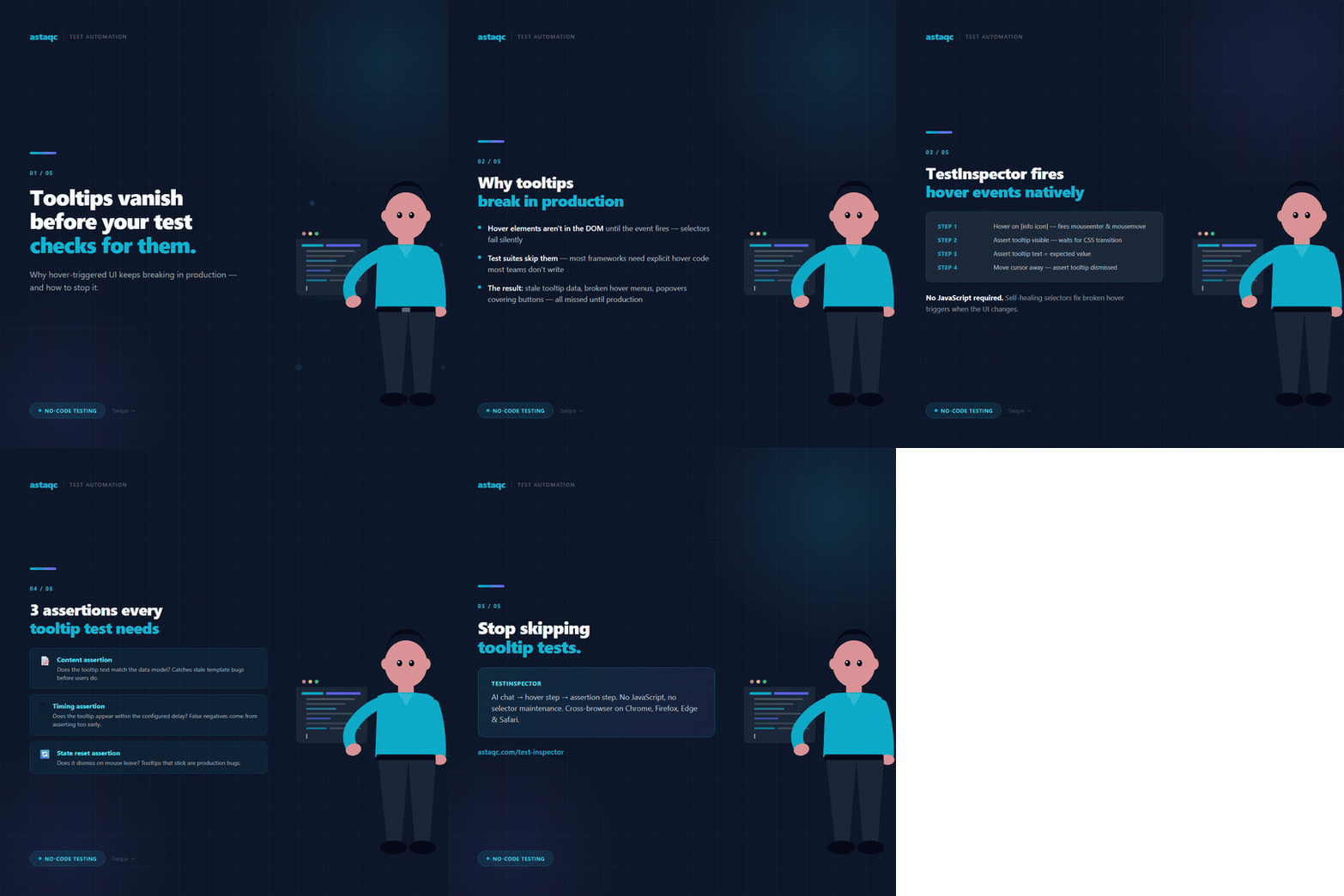
This guide covers how TestInspector handles hover interactions in no-code tests, what tooltip assertions look like in practice, and when this approach is more efficient than code-first alternatives.
How TestInspector Handles Hover Event Triggers in No-Code Tests
TestInspector generates tests through its AI chat interface, which produces structured test steps — not JavaScript code. When you describe a hover interaction, the system generates a hover step targeting the element and an assertion step targeting the tooltip's DOM state and content. The test runs via Selenium on Chrome, Firefox, Edge, and Safari, and Selenium's native hover implementation fires the mouse enter and mouse move events that trigger CSS hover state transitions and JavaScript event listeners that render tooltip content.
The key behavior that makes this work reliably is Selenium's execution model: hover steps wait for the target element to be interactable before firing the event, and assertion steps include implicit waits for the asserted element to reach its expected state. Tooltips that render after a CSS transition delay or a JavaScript debounce are handled by configuring the assertion step's wait condition — typically a visibility assertion on the tooltip's DOM element, with a maximum wait period matched to the tooltip's configured delay. This eliminates the category of test failures that come from asserting a tooltip's visibility before the transition completes.
TestInspector's self-healing selector logic applies to hover steps the same way it applies to click and input steps: if a code or structure change breaks the selector that identifies the hover trigger, TestInspector's AI selector engine surfaces alternative selectors and flags the step for review. This matters for tooltip-heavy UIs, where help icons, info badges, and hover-state labels are often positioned relative to their parent elements and can break when the parent component changes layout. Without self-healing, every component refactor requires manual selector updates across all tests that target hover triggers in that component.
For teams building UI test automation coverage, the practical implication is that hover and tooltip tests do not require knowledge of Selenium's hover API, event simulation order, or the CSS transition model. The test steps describe the interaction at the user-action level, and the execution layer handles the event firing, element wait behavior, and browser compatibility. This reduces the barrier to building hover coverage from a framework expertise problem to a test design problem — which test scenarios matter, what content needs to be asserted, and when tooltip state resets need to be validated.
Asserting Tooltip Content, Timing, and Visibility State Without JavaScript
Tooltip tests require three categories of assertion that go beyond checking whether the tooltip element is visible:
Content assertions validate that the tooltip's text, HTML, or dynamic value matches the expected content. Dynamic tooltips — tooltips that display a data value from the application state, such as a user's last login time, a price with currency formatting, or a permission level — require assertions that compare the tooltip's actual rendered text against an expected value that may be fetched from the application's API or derived from a test variable. TestInspector's variable interpolation supports this pattern: a test variable holds the expected tooltip value, an HTTP request step fetches the current value from the backend, and the assertion step compares the tooltip's rendered content against that variable. This pattern catches the specific failure mode where the UI tooltip template is out of sync with the backend data model.
Timing assertions validate that the tooltip appears and disappears within expected bounds. TestInspector's visual regression via SSIM screenshot comparison can capture the tooltip's presence or absence at a specific time point in the test run, providing a visual baseline that catches design regressions in tooltip styling and layout.
State reset assertions validate that the tooltip dismisses correctly when the cursor leaves the trigger element, when the user clicks elsewhere, and when the user navigates to a different page. Tooltips that persist after cursor movement indicate a missing mouse leave event handler or a CSS state that was not reset. State reset tests run a hover interaction, assert the tooltip visible state, then perform the dismissal action and assert the tooltip's absence — a two-step test scenario that covers the full display-dismiss lifecycle.
For software testing teams building tooltip coverage systematically, the most effective approach is to start with content assertions on tooltips that display application data — these catch the highest-value failures first — then add timing and state reset coverage for components where timing issues have caused bugs or user complaints in production.
Popover, Dropdown, and Contextual Menu Testing: When Hover Becomes a Click-Activated Pattern
Many UI patterns that appear to be hover-triggered are actually click-activated, with hover state used only for visual feedback. A dropdown menu that opens on hover in a desktop navigation pattern often uses :hover CSS pseudo-class, which Selenium's hover action triggers correctly. A popover that opens on click and closes on click-outside uses JavaScript event listeners, which requires a different test pattern: click to open, assert popover visible, click outside, assert popover dismissed. TestInspector generates both patterns from natural language descriptions.
Contextual menus — right-click menus, action menus that appear on row hover, and option menus triggered by an ellipsis icon — represent a third interaction model. Right-click menus require a right-click step rather than a hover step. Row-hover action menus require a hover on the row element, then a click on the action button that becomes visible after the hover. TestInspector's AI chat interface generates the correct step type when you describe the interaction.
| Interaction Type | Trigger Mechanism | TestInspector Step | Key Assertion |
|---|---|---|---|
| Tooltip on hover | CSS :hover / JS mouseenter | Hover step + visibility assertion | Tooltip text content, dismiss on mouse leave |
| Hover-triggered dropdown | CSS :hover on nav item | Hover step + dropdown visible assertion | Menu items rendered, navigation works |
| Click-activated popover | JS click event listener | Click step + popover visible assertion | Popover content, dismiss on outside click |
| Row-hover action buttons | CSS opacity/visibility on :hover | Hover on row + click on action button | Action fires correctly, state updated |
| Right-click context menu | JS contextmenu event | Right-click step + menu visible assertion | Menu options correct, action triggers |
For manual testing teams that currently cover these interaction patterns through exploratory testing, the transition to automated coverage starts with the highest-risk interactions first: tooltips that display application data, hover-triggered navigation menus where a broken hover state blocks access to entire sections of the UI, and row-hover action buttons in data tables where visibility failures block critical user actions like edit and delete.
TestInspector vs. Code-First Frameworks for Tooltip and Hover State Testing
| Dimension | TestInspector (No-Code) | Playwright / Selenium (Code-First) |
|---|---|---|
| Hover step creation | AI chat generates hover step from description | Requires locator.hover() or Actions.moveToElement() code |
| Tooltip timing handling | Wait conditions configurable per step without code | Requires explicit waitForSelector or timeout configuration |
| Selector maintenance | Self-healing with AI selector suggestions on breakage | Manual selector updates required when component changes |
| Cross-browser execution | Chrome, Firefox, Edge, Safari via Selenium — same test runs all | Requires separate browser configurations and infrastructure |
| Who can write tests | QA engineers, product managers, manual testers | Developers or SDETs with framework knowledge |
| Visual regression | Built-in SSIM screenshot comparison with baseline approval | Requires separate visual testing tool |
Frequently Asked Questions
Can TestInspector test tooltips that only appear after a specified delay?
Yes. TestInspector's assertion steps include configurable wait conditions that hold the assertion until the target element reaches the expected state within a maximum wait period. For a tooltip with a 500ms delay, the assertion step waits for the tooltip element to become visible, with a maximum wait period configured above 500ms. This prevents the test from asserting tooltip visibility before the delay completes, which is the most common source of false negatives in tooltip tests.
How does TestInspector handle tooltips implemented with the HTML title attribute?
HTML title attribute tooltips are browser-native tooltips rendered by the browser's own UI, not by the application's DOM. Selenium's hover action fires the mouse events, but the browser-native tooltip is not a DOM element and cannot be asserted using standard DOM selectors. TestInspector's visual regression via SSIM screenshot comparison can capture the tooltip's visual presence on the page, but content assertions on HTML title attribute tooltips require an attribute assertion on the triggering element's title attribute rather than a visibility assertion on a tooltip element.
What is the best approach for testing popovers that contain interactive elements?
Popovers with interactive content — confirm dialogs, mini-forms, action buttons — require a click-to-open interaction model. The test opens the popover with a click step, asserts the popover's content and interactive element states, interacts with the interactive elements within the popover, and asserts the results of those interactions. TestInspector generates this multi-step pattern when you describe it at the user-action level.
How should row-hover action buttons be tested when the hover target and the action button are different elements?
Row-hover patterns where the action buttons become visible only when the row is hovered require a compound step: hover on the row container element first, then click the action button that becomes visible. TestInspector handles this as two sequential steps — a hover step targeting the row element, then a click step targeting the action button. The click step waits for the button to become interactable, which handles the CSS transition that reveals it after the hover.
Can hover state tests be run as part of a CI/CD pipeline trigger?
Hover state tests run via TestInspector's CI/CD trigger API, which allows them to be initiated from any CI pipeline — GitHub Actions, GitLab CI, Jenkins, or any pipeline that can make an HTTP request. The trigger API starts a test run, optionally specifying which suite to run, and returns a run ID that can be polled for status or monitored via WebSocket for real-time results. For teams using TestInspector as their primary no-code test automation platform, the same scheduling and trigger configuration applies to hover state tests as to any other test type. For teams evaluating test automation services, the guide to outsourcing QA testing outlines how to scope a UI automation engagement.
Tooltips that render correctly in manual testing but fail in production typically have one cause: the automated test suite skips hover-triggered elements entirely because they are not in the DOM at selector evaluation time.

Astaqc Team
November 18, 2026


Published by the Astaqc engineering team. Astaqc Consulting is a software testing company based in India, delivering test automation, manual testing, and performance testing services.